How to Update Details of an Existing Test
Print
Created by: Fahim Shaikh
Modified on: Tue, 4 Nov, 2025 at 7:33 PM
If you wish to make changes to an existing test — such as updating the price, sample type, department, or any other details — you can easily do so from the Profile & Report Management section.
Steps to update test details:
Go to Admin → Profile & Report Management.
Click on Test List.
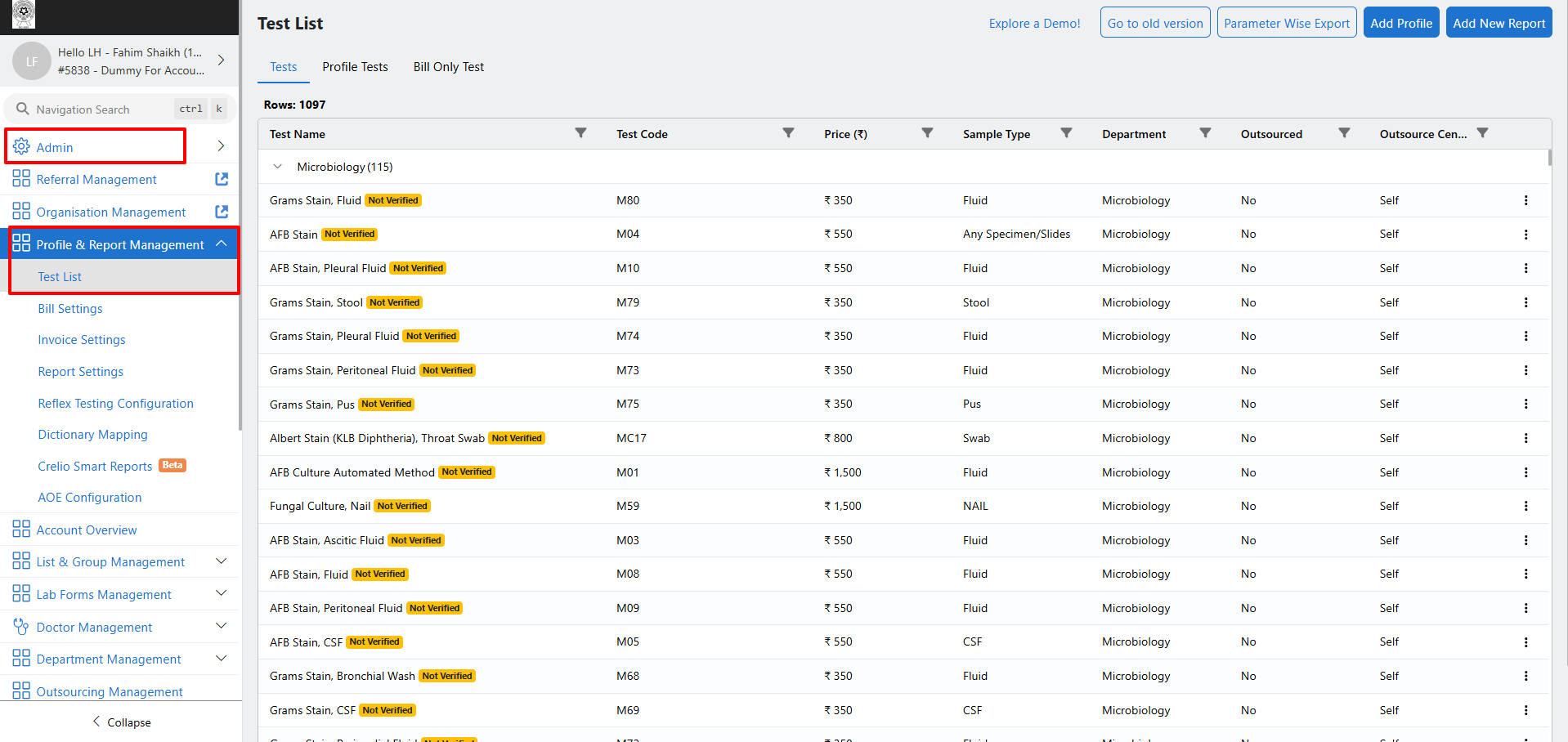
Select the test for which you want to update the details.
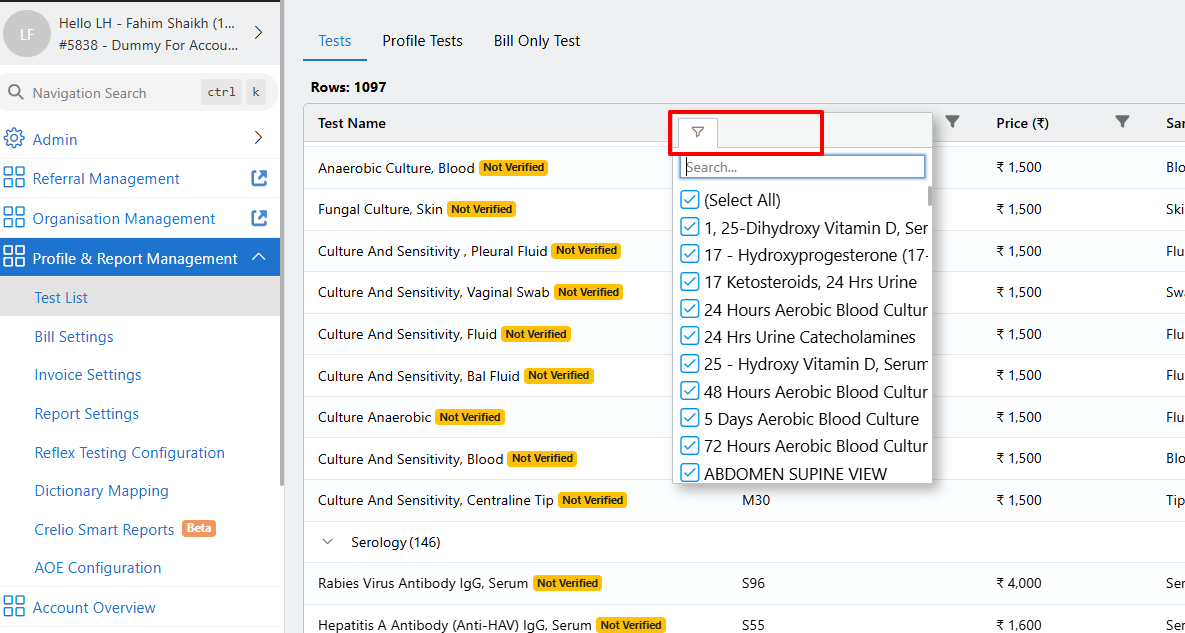
Make the necessary updates (e.g., price, sample type, department, etc.).
Click on Save Changes.
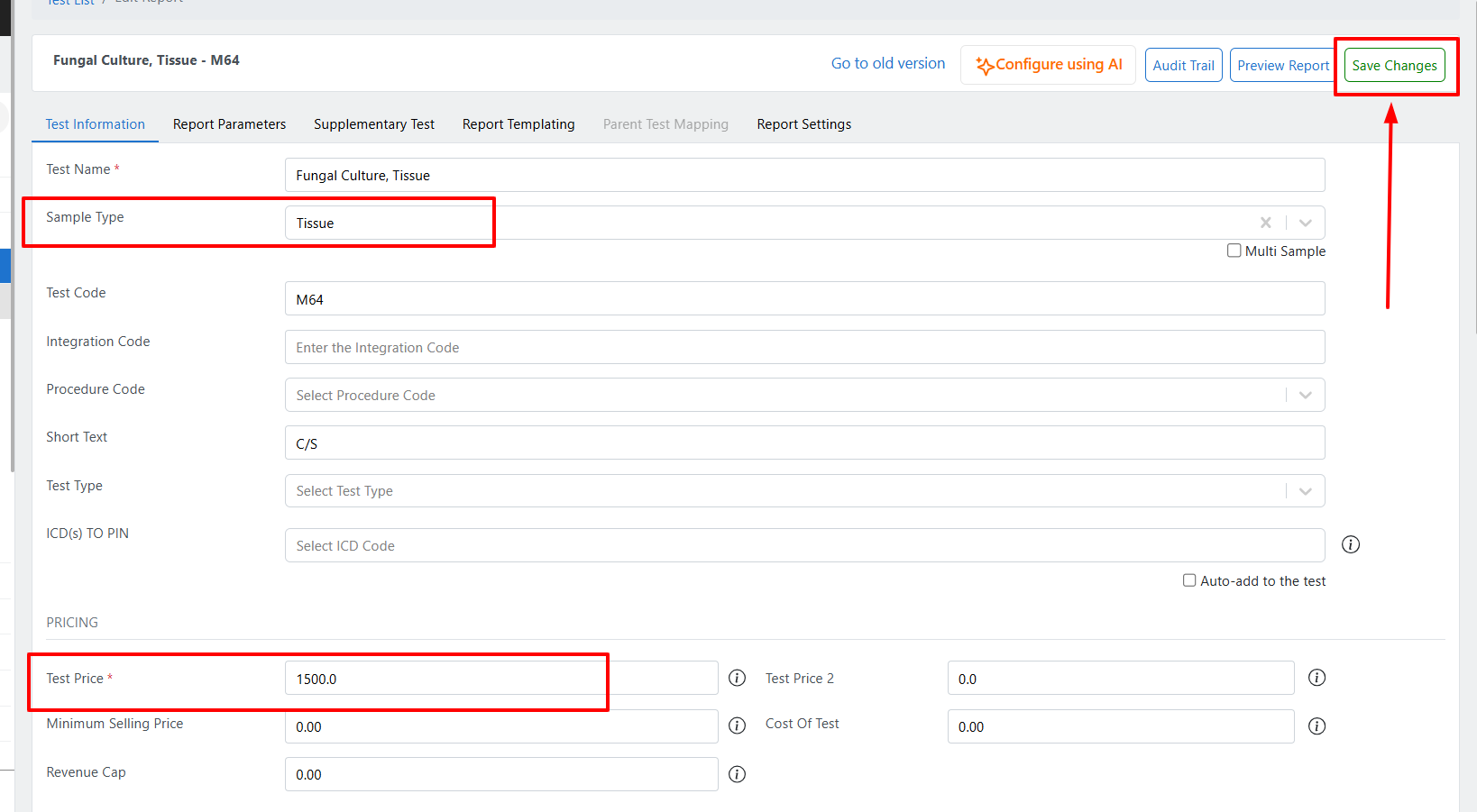
And that’s it — your test details are successfully updated!
Note: To access Profile & Report Management, you must have Admin and Profile & Report Management access enabled for your user ID.
If you do not have the required access, please reach out to your Lab Admin for assistance.
For a better understanding, you can refer to the attached video tutorial.
Fahim is the author of this solution article.
Did you find it helpful?
Yes
No
Send feedback Sorry we couldn't be helpful. Help us improve this article with your feedback.
