
Sometimes, a test may be missed while creating an Bill.
No need to worry — the system allows you to add tests to an existing order quickly and easily.
Using this option, you can either add the test to the same order or create a new order with the same accession number, based on your requirement.
Steps to Add Tests to an Existing Order :
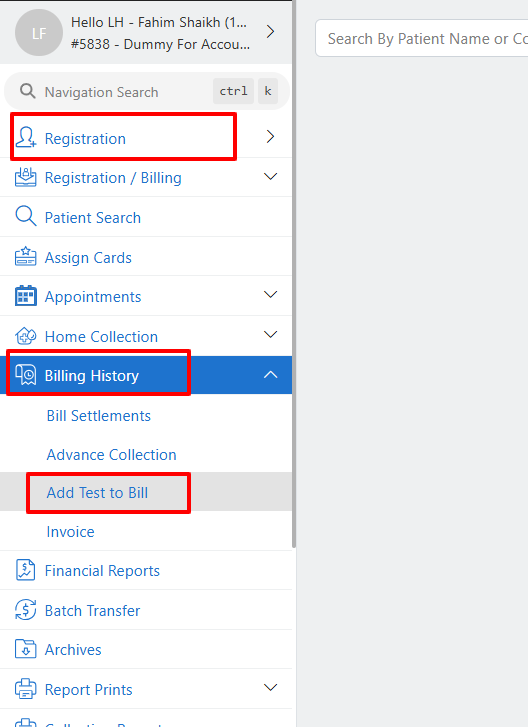
Go to the Registration page.
Navigate to Billing History.
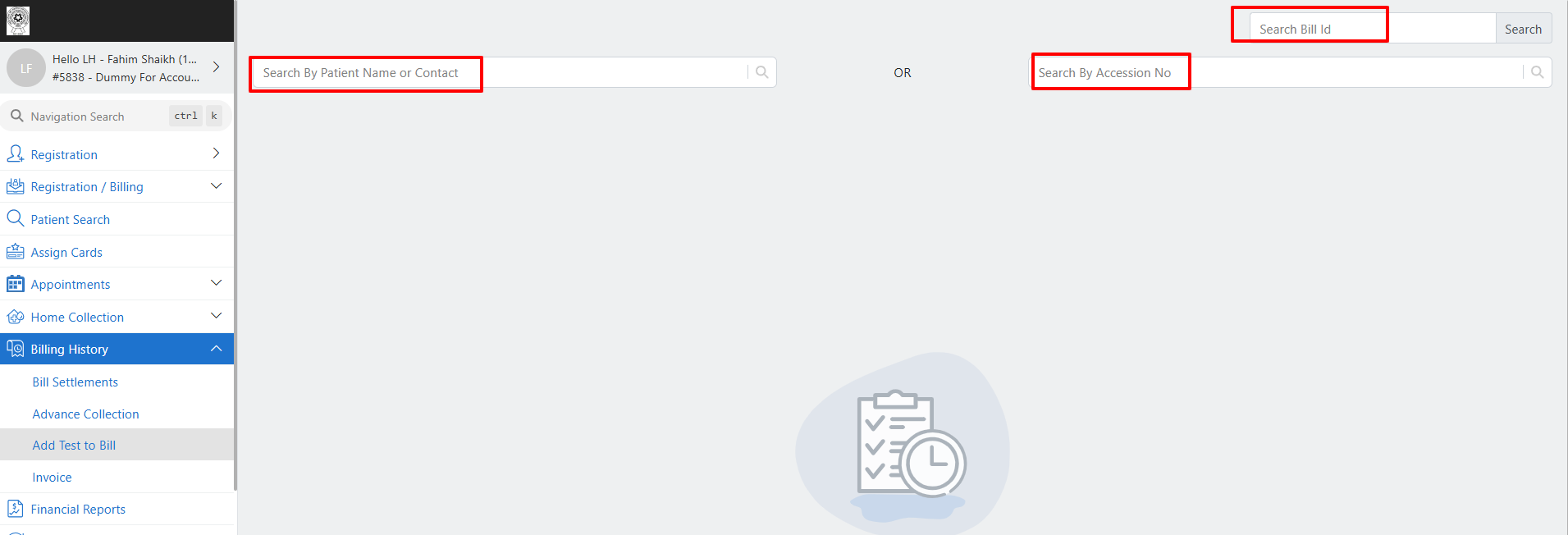
In the Add Test to Bill panel on the left side, search for the patient using:
Patient name
Contact details
Accession number
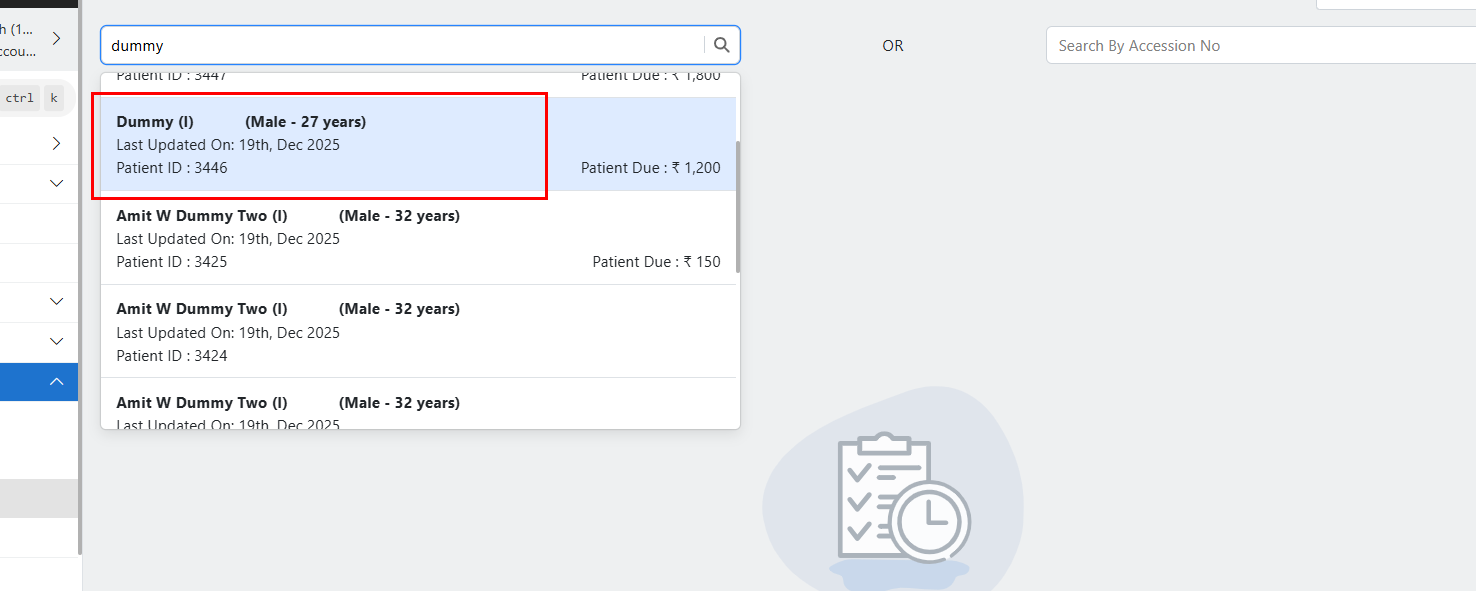
Select the patient to view all existing orders.
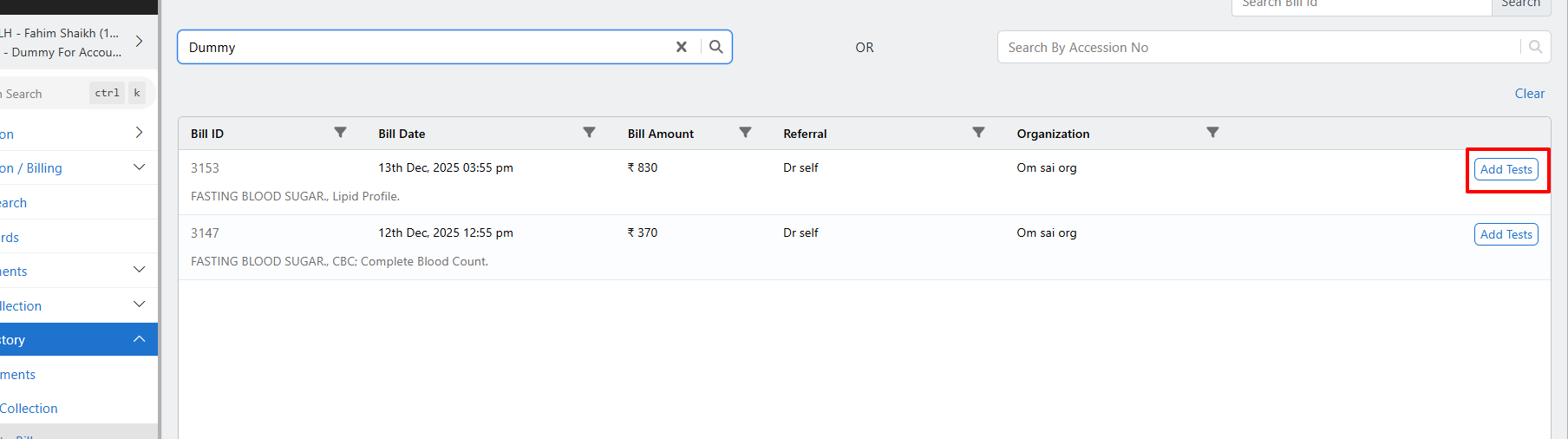
Choose the Bill to which you want to add the missed test.
Click on Add Tests.
Select the required test(s) (for example, CBC).
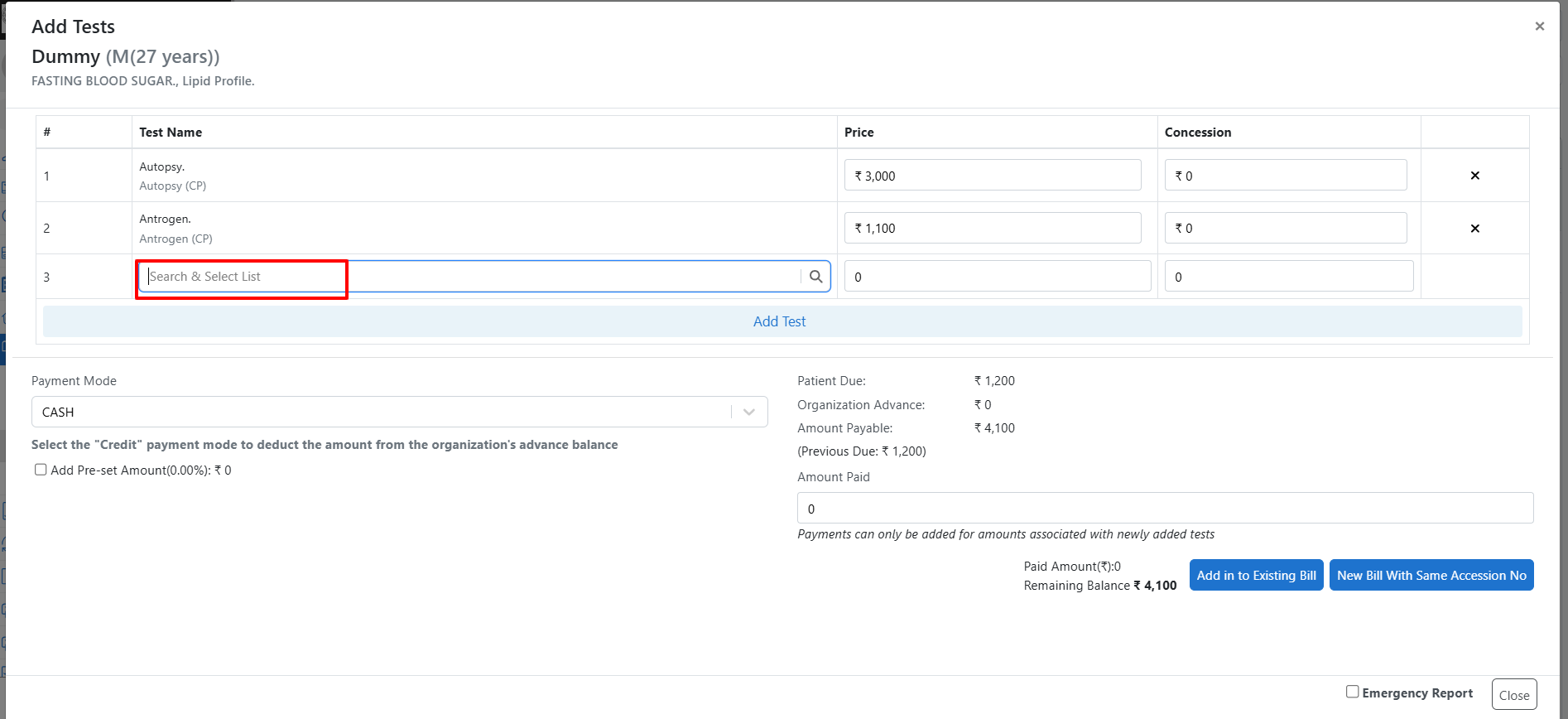
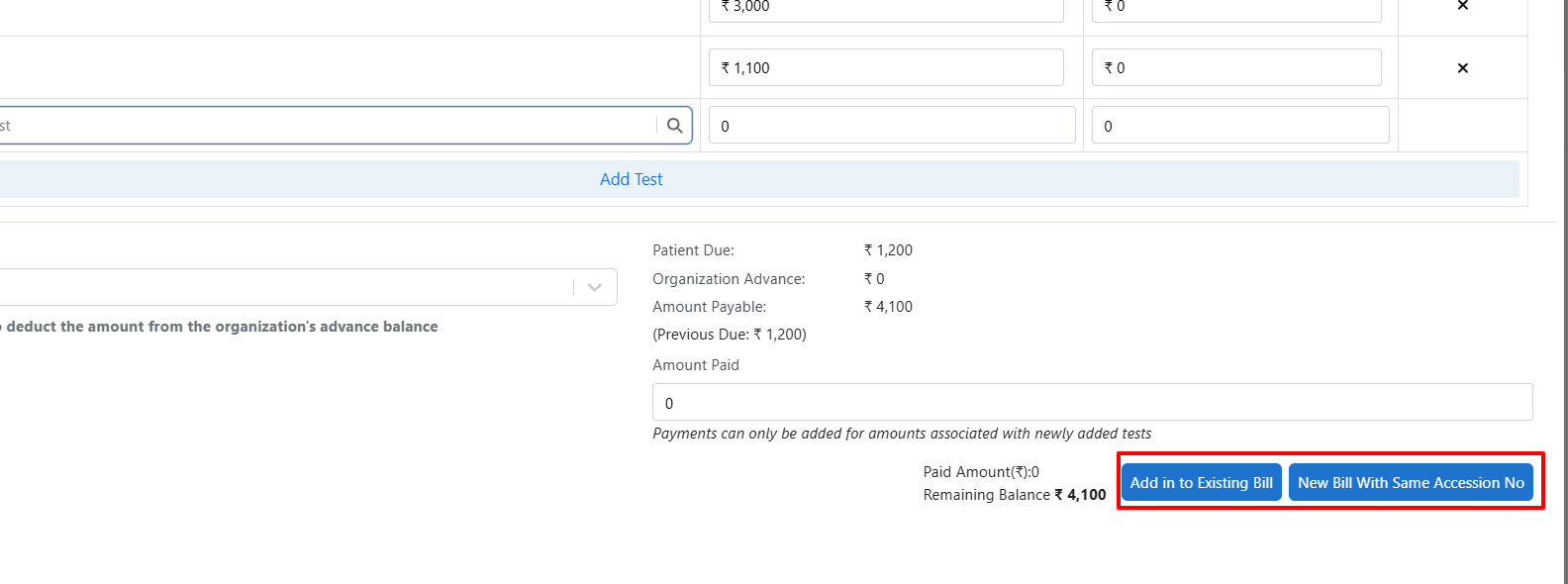
At the bottom of the screen, choose one of the following options:
Add Tests to Existing Bill
New Order with the Same Accession Number
Enter the required comments.
Click on Yes, I am Sure to confirm.
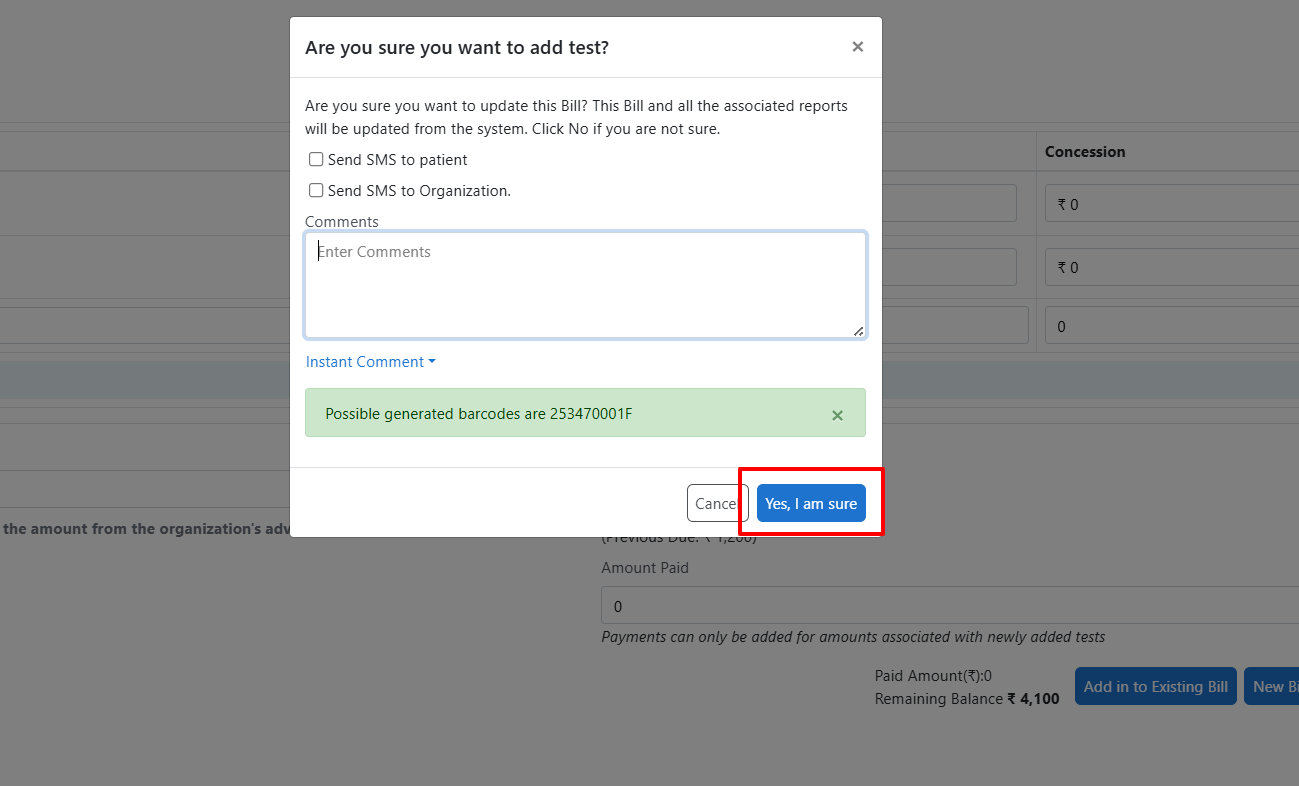
And that’s it — the test is successfully added to the order!
Note:
Add Tests to Existing Order will add the test to the same order.
New Order with the Same Accession Number will create a new order while retaining the same accession number.
For a better understanding, you can refer to the attached video tutorial.